
To understand the R&D statuses field, see How to check the status of your bug?.From the Support Portal, you can export the list of your Support tickets to a CSV or Excel file and include the Current R&D status of the related Bugs or Enhancements. This lets you follow all your R&D items at once, without opening each ticket one by one.
Export your tickets
- Sign in to the Support Portal and go to the Tickets tab. Open the view drop-down (Open or Pending by default) and select Resolved or Closed: once the Bug or Enhancement is created, the Support team sets your Support ticket as Resolved.
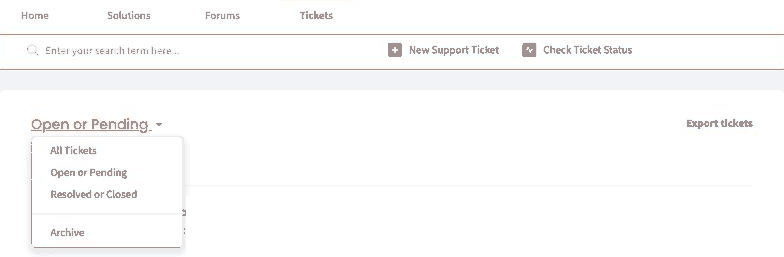
- Click Export tickets, at the top right of the ticket list.
- In Export as, choose CSV or Excel.
- In Filter tickets created in, select the period to export: Today, From yesterday, Last 7 Days, Last 30 Days, or Set date to choose your own date range.
- In Select fields to export, tick Current R&D status. This field is not selected by default.
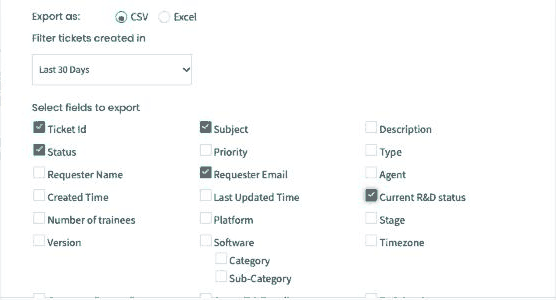
- Tick any other fields you need (see the suggestions below), then click Export.
Recommended fields
The following fields give you a complete overview of your tickets and their R&D progress.
| Field | What it tells you |
|---|---|
| Ticket Id | The Support ticket reference |
| Subject | The title of your ticket |
| Status | The status of the Support ticket (Open, Pending, Resolved, Closed) |
| Current R&D status | The progress of the linked Bug or Enhancement (for example: planned, in progress, released) |
| Created Time / Last Updated Time | When the ticket was opened and last modified |
| Software / Version | The product and version concerned by your ticket |
Good to know
- The period filter applies to the creation date of the tickets. To include older tickets, use Set date.
- Tickets that are not linked to an R&D Bug or Enhancement have no R&D status to display.
- A Support ticket is usually closed once the Bug or Enhancement is created, but you can keep following its R&D progress in your export.
Caution: When a Bug or Enhancement is planned, there is no commitment from the development team to release it or to deliver it on a specific date.